


Instructions for use of loaning management system and sign-in/check-out for professional classrooms
Classroom borrowing process:1. Go to the homepage of the Department of Fine Arts: related regulations → professional classroom borrowing from the Department of Fine Arts 2. Please read the relevant methods and regulations carefully before borrowing. 3. After reading, go to the management system platform to borrow the classroom, as shown below
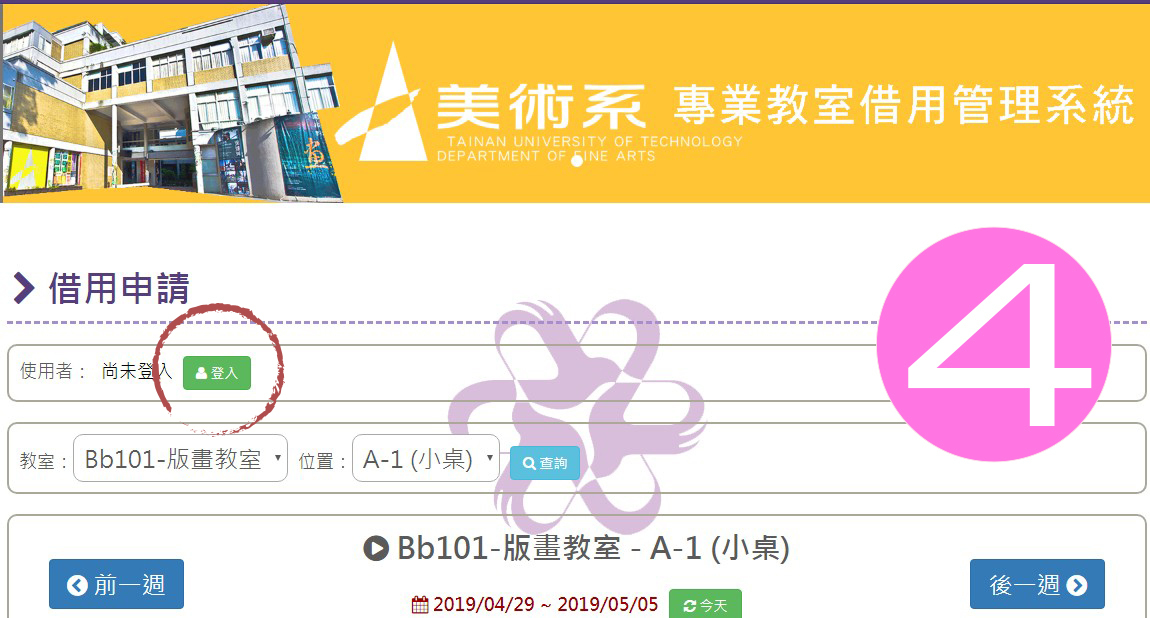
4. Please log in to the system first , as shown below p>
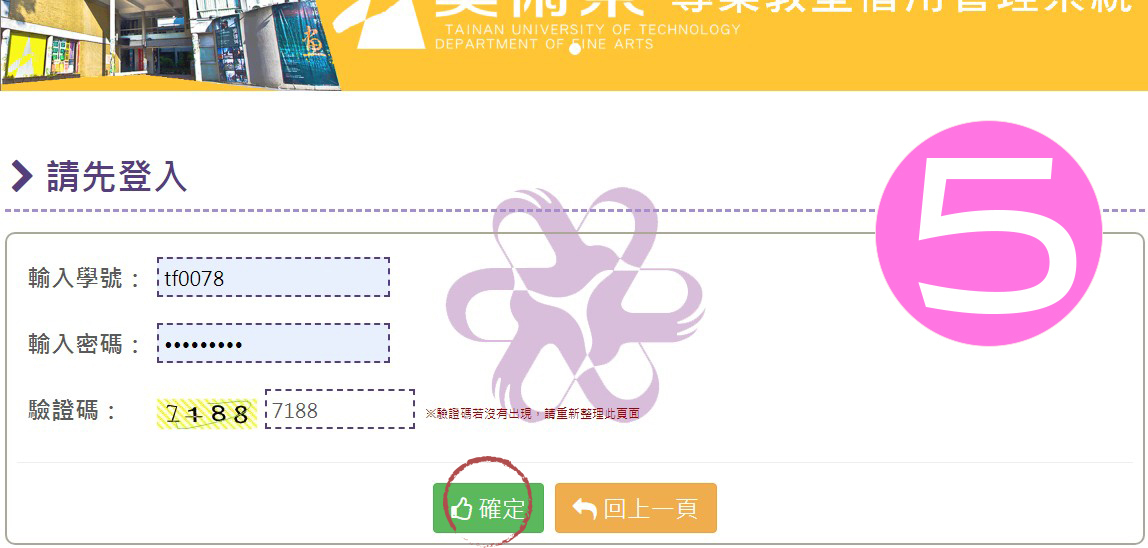
5. Enter the school account and password to log in , as shown below
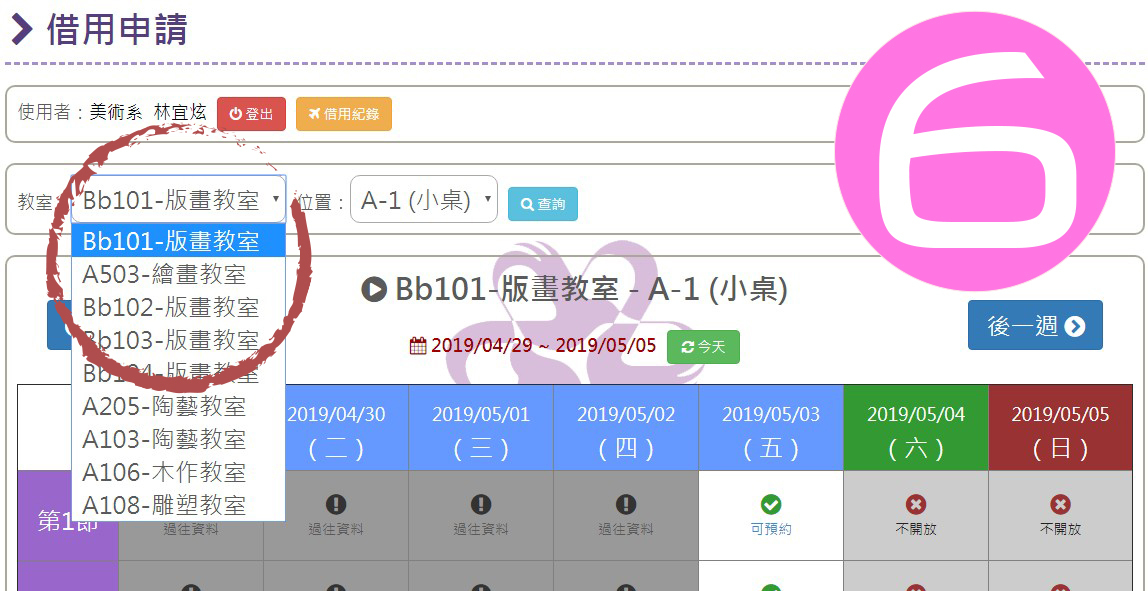
6. After logging in, first select the classroom , as shown below< /p>
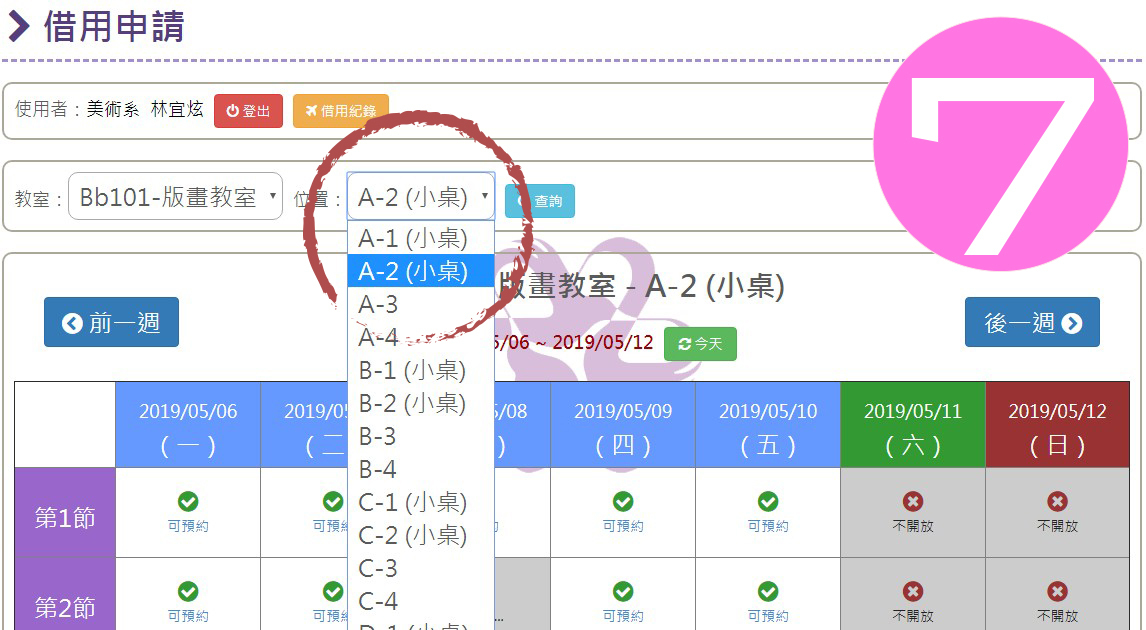
7. Then select the work area, as shown below p>
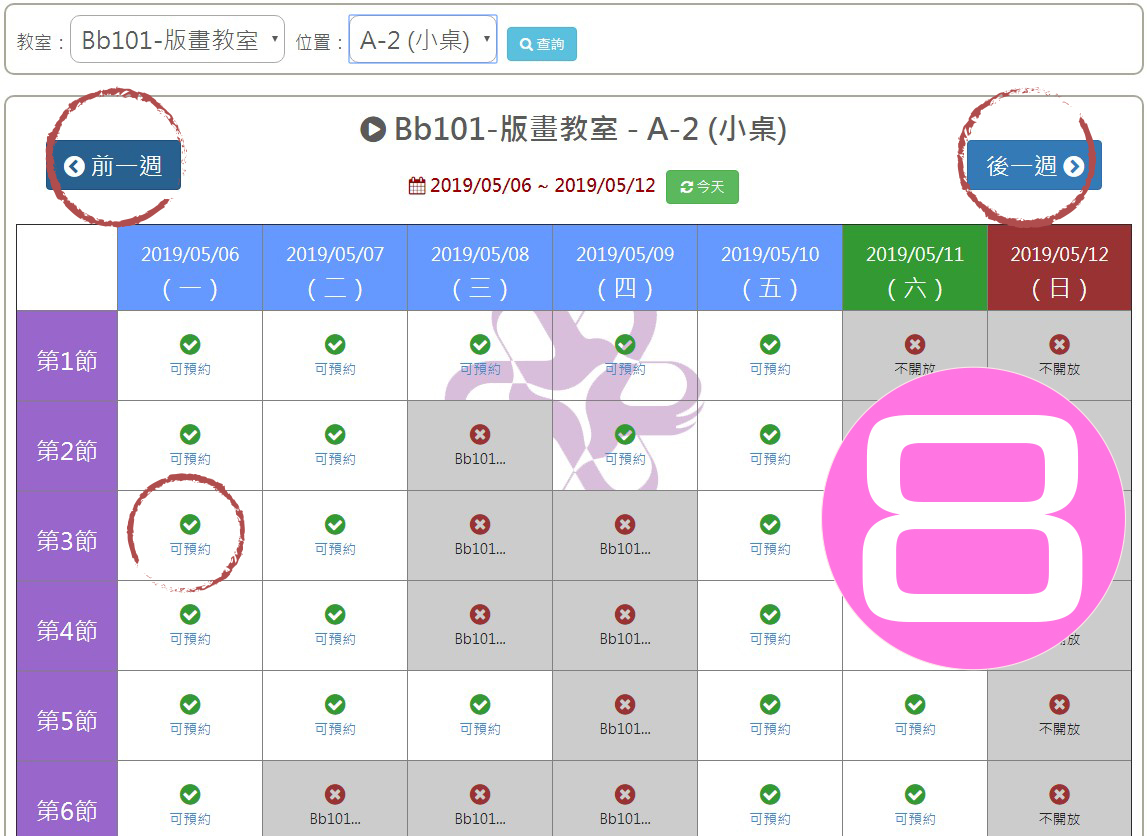
8. Find the date and click on the section you want to borrow , as shown below
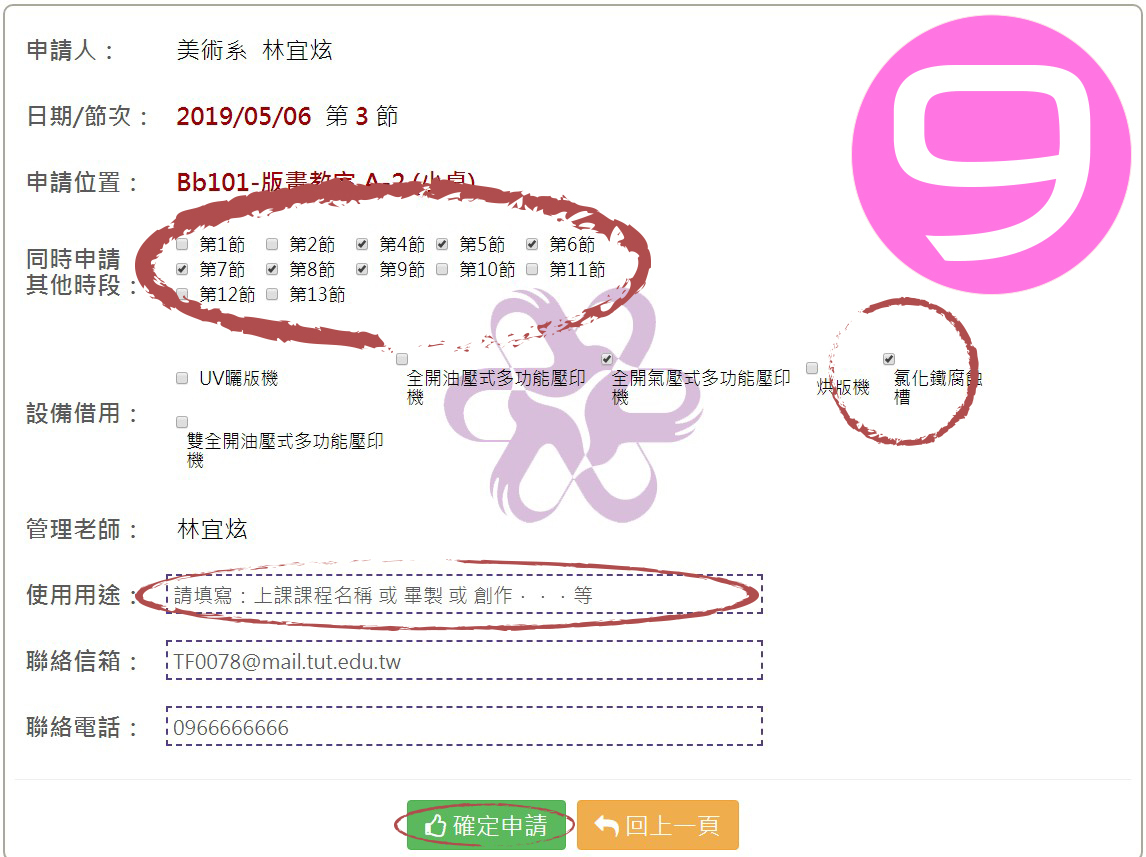
9. Check to apply for other time slots and borrow equipment at the same time. Please fill in the purpose: class name or completion or creation. After completing this page, please click "Confirm Application" , as shown below
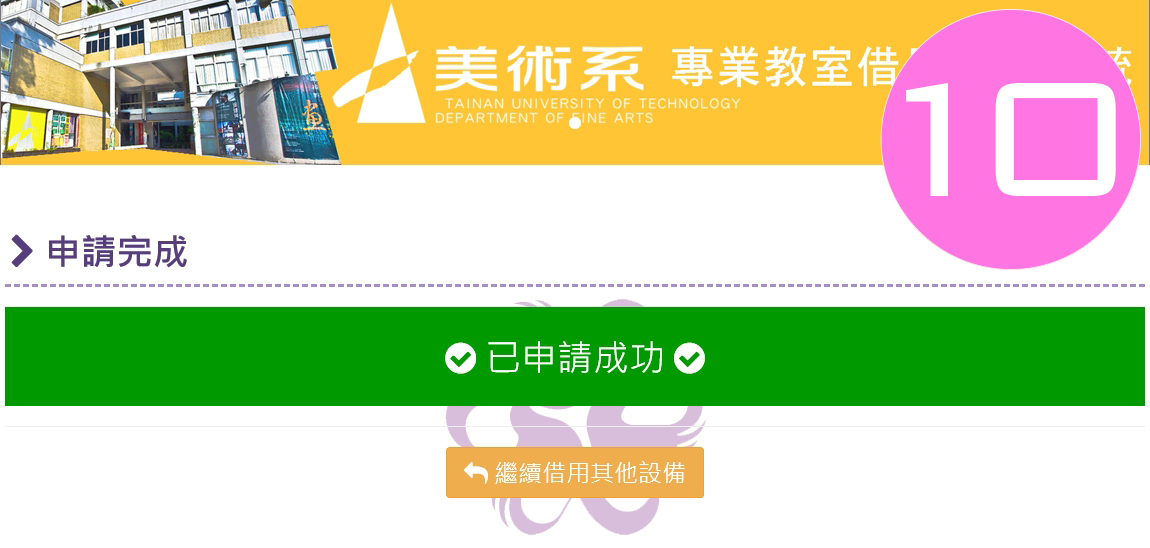
10. If the application is successful, the system will display the "Successful application" screen
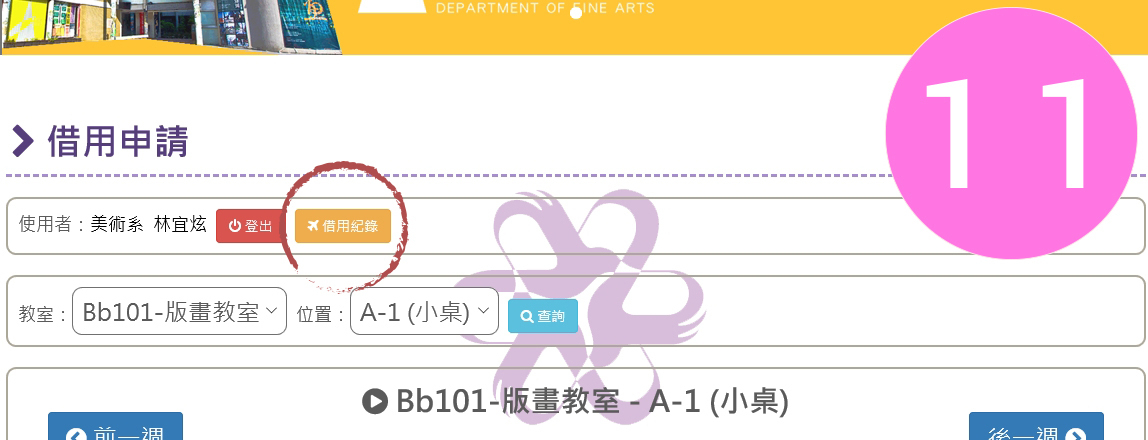
11. Return to the system homepage to query "borrowing records", as shown below< /span>
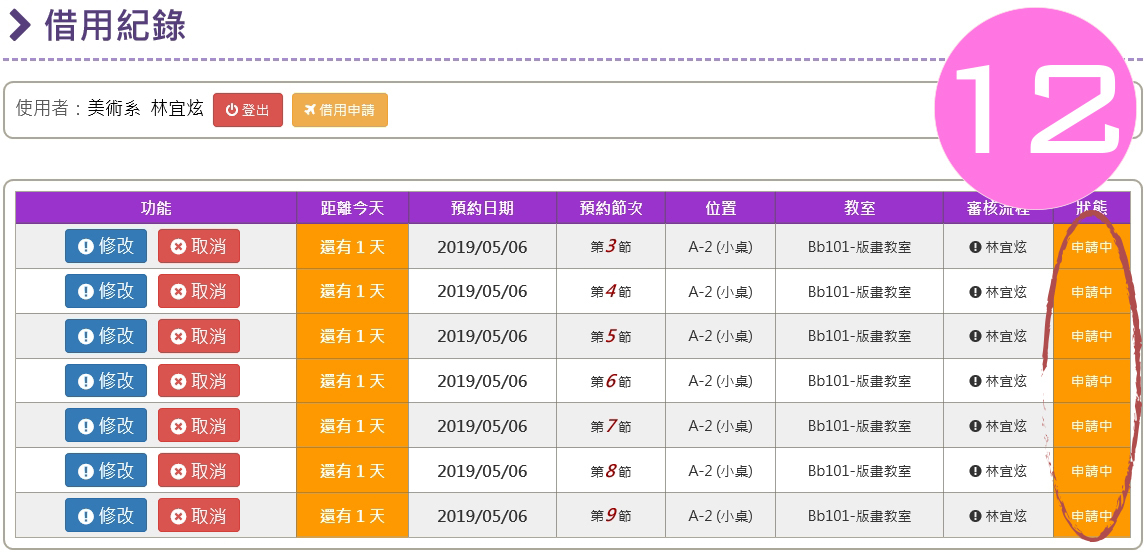
12. The management teacher did not approve the screen showing "Applying", as shown below
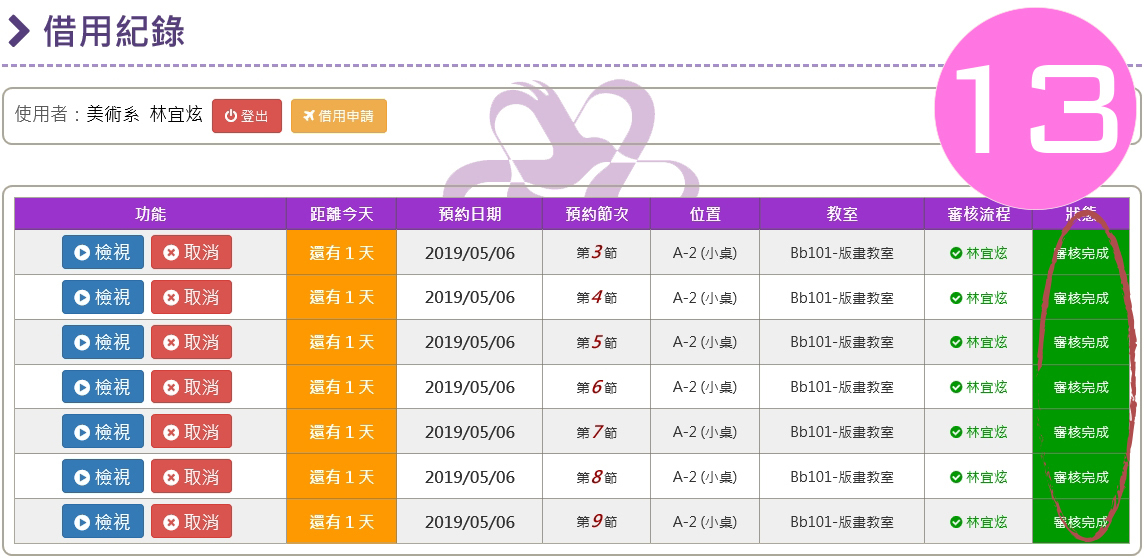
13. After the management teacher approves, it displays "review completed", as shown below
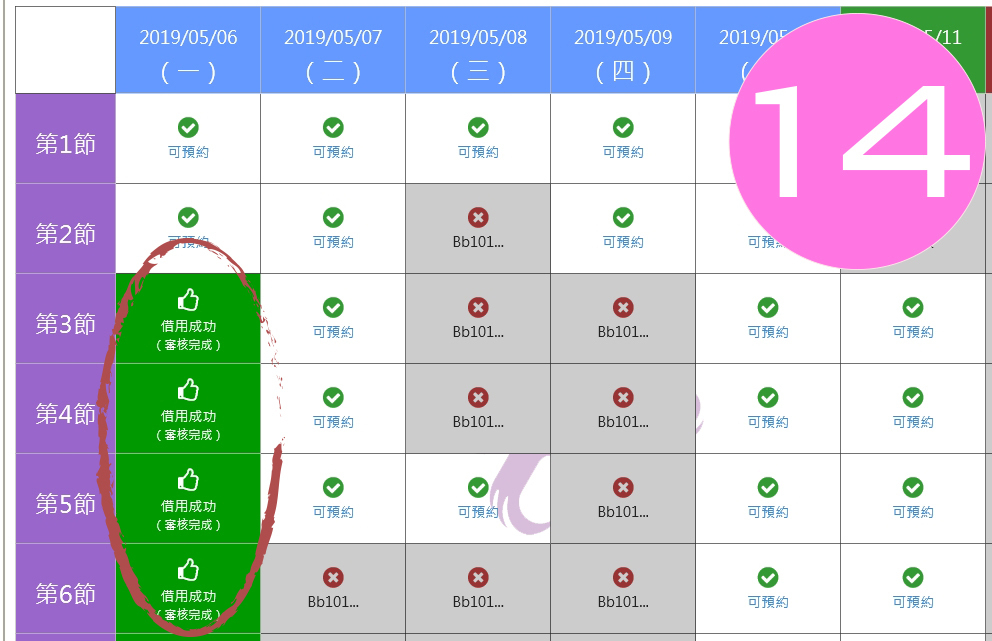
14. Return to the calendar and display "borrowed successfully", as shown below< /span>
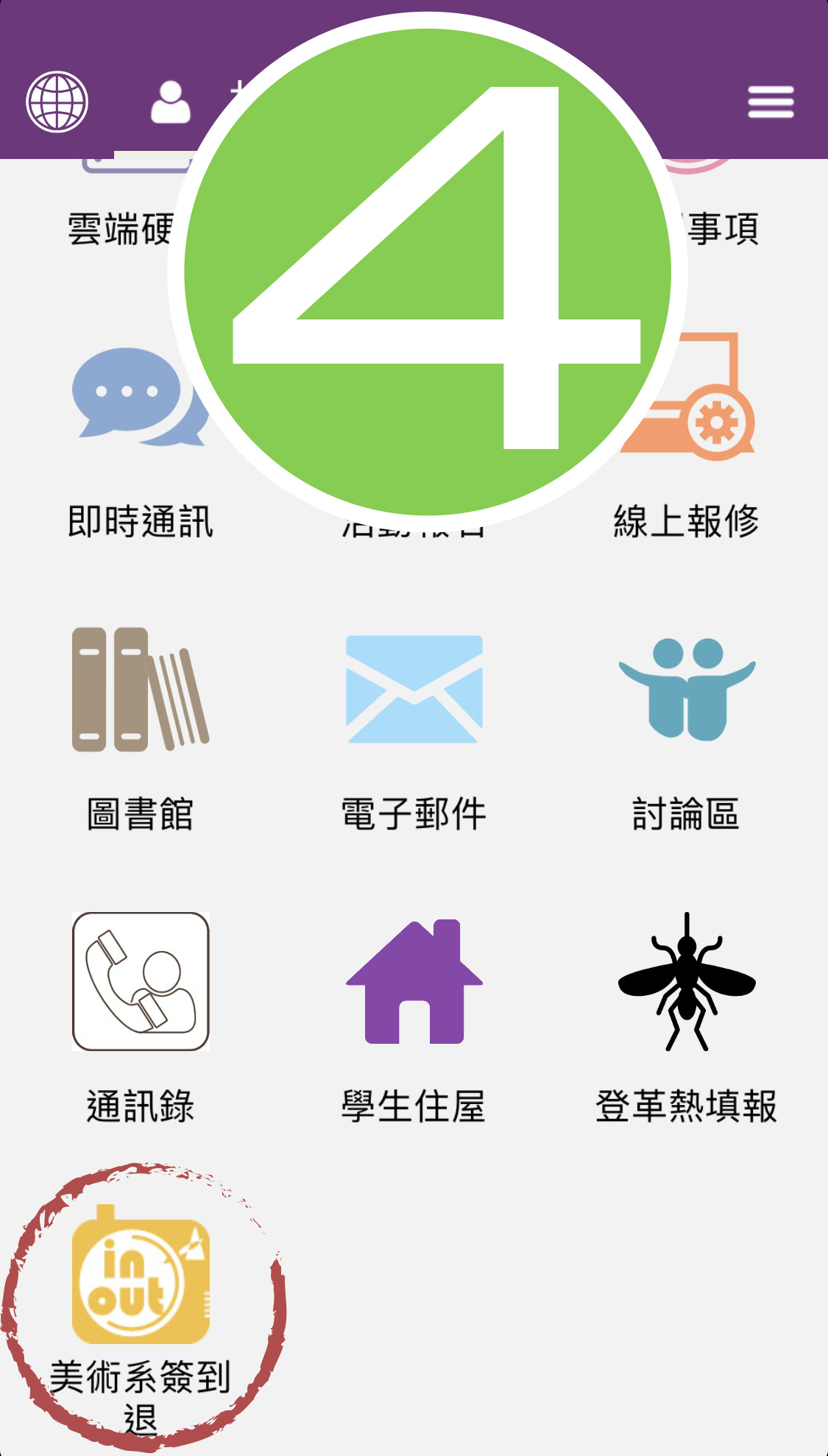
Check-in/check-out instructions:1. Please go to Google Play/App Store first 2. Open the app and click on the "School Administration" icon 3. Enter the school account and password to log in 4. Click on the "Art Department Sign in and Exit" icon to sign in/out , as shown in the figure below
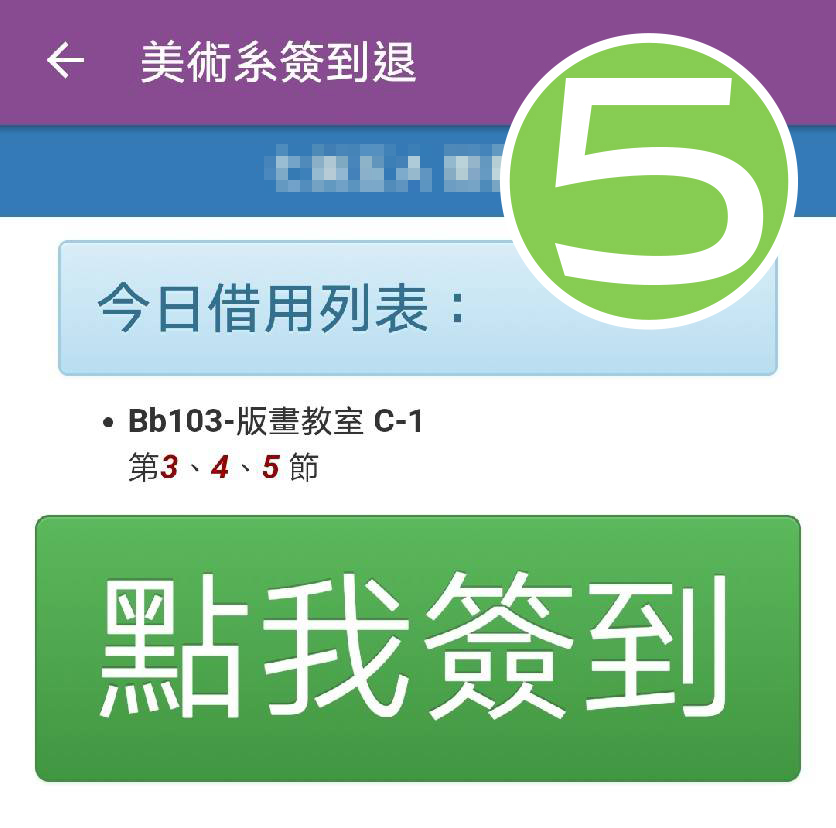
5. Click "check in/check out", as shown below
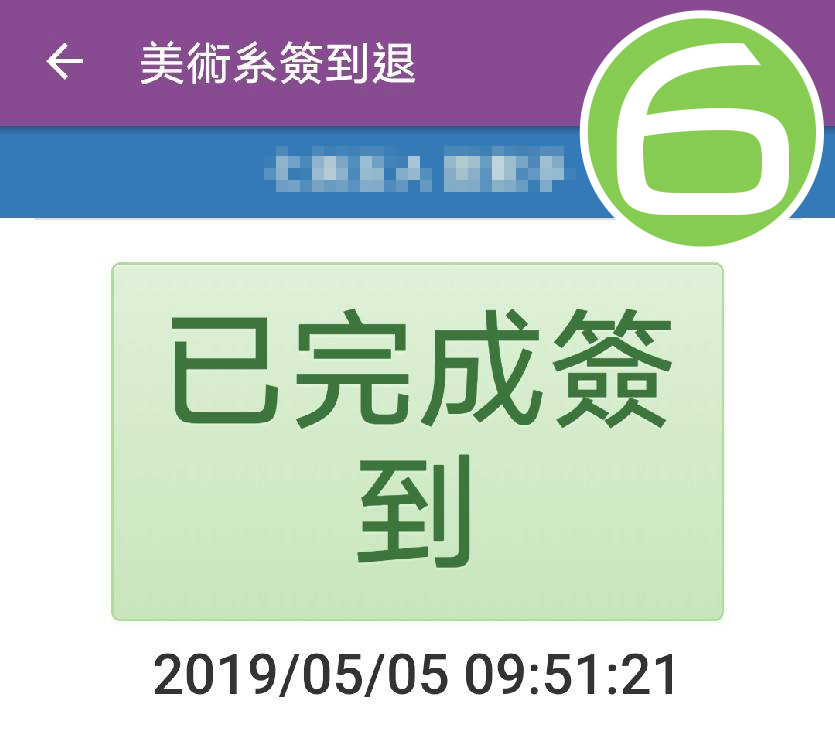
6. Complete "check-in/check-out", as shown below
|